
EE 手持扫码
EE 手持扫码设备使用手册:涵盖产品概述、尺寸参数、接口定义、使用说明、二次开发、安装示意图与注意事项。
前言
感谢使用提供的 EE 手持扫码设备。认真阅读本文档,可以帮助您了解此设备功能、特点、以及快速掌握设备的使用、安装方法。本公司不承担由于用户不正常操作造成的财产损失或者人身伤害责任。请用户按照手册中的技术规格和参考设计开发相应的产品。在未声明之前,本公司有权根据技术发展的需要对本手册内容进行修改。
产品简介EE是一款针对停车场岗亭收费场景的远距离扫码设备,具备USB、RS232两种通信方式。具备IP66防水等级,在室外可放心使用。
产品特点1,快速扫码。2,远距离扫码。3,IP66防水等级。4,具备两种接口方式。
注意事项1, 拆解与改装:请不要擅自拆卸或改装设备硬件,若由此导致设备破坏,本公司不承担保修责任。2, 异常状况:远离火源,当您发现有异常气味,过热或出现烟雾的情形下,请立即关闭电源开关,并从交流电插座上拔掉插头,并与您购买产品的经销商或者本公司客服中心联系。3, 跌落损坏:设备因掉落地面而导致损坏,请立即关闭电源,并与您购买产品的经销商或者本公司客服中心联系。4, 放置地点:请不要将设备放在不稳或者不平的地方,以免设备跌落造成损坏;请不要将设备放在大量湿气或者粉尘的地方,以免造成漏电或起火。
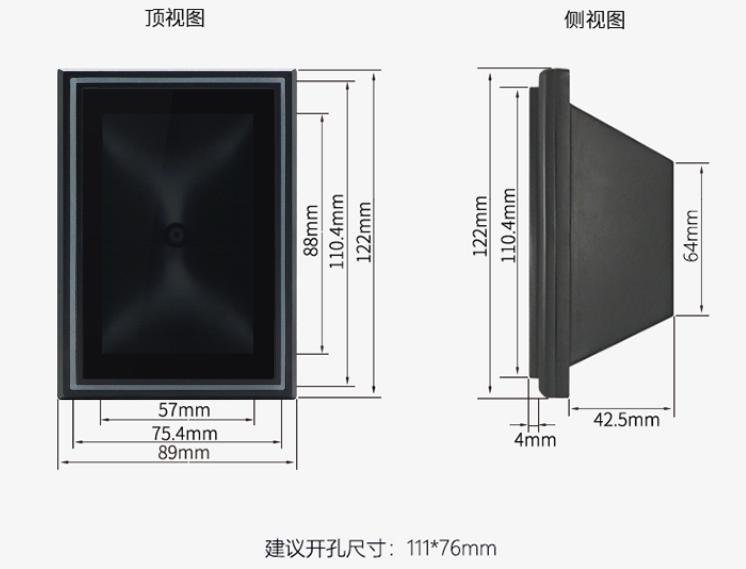
产品尺寸图
备注:可以在官网下载产品 2D、3D 图
商品参数
常规参数常规参数输出接口 USB、RS232指示方式白色、红色、绿色指示灯蜂鸣提示图像传感器 100万像素 CMOS传感片最大分辨率 1280960操作系统 Windows(xp.7.8.10),linux,Android,mac 等安装方式 嵌入式安装产品尺寸 122mm89mm58.6mm识读窗尺寸 88mm57mm产品材质 ABS+PC+钢化玻璃防水等级 IP66
识读参数二维码识读参数识别码制QRCode、PDF4
EAN-
EAN-
ISBN-
CODE
CODE
CODE1
UPC、ITF、aztec等解码支持 手机屏幕识读景深 5cm-65cm (30mil二维码)2cm-170cm (55mil二维码)读取方向 倾斜角66° 偏转脚61° 水平360°视场角 水平41.56° 垂直26.6° 对角48.2°
电气参数须在连接好设备之后,才允许提供电源输入。如果在线缆带电时接插或拔离设备(带电热插拨),将会损坏其电子部件,请确保在进行线缆插拨时已切断电源。不良的电源连接、或过短间隔的电源关闭开启操作、或过大的压降脉冲都可能导致设备不能处于稳定正常的工作状态,需保持电源输入的稳定。在关闭电源输入后,需间隔2 秒以上才可以再次开启电源输入。电气参数工作电压 DC 5-15V工作电流 193.1mA(5V典型值)额定功耗 965.5mW(5V 典型值)
工作环境工作环境参数静电防护 EN61000-4-2工作温度 -20°C-70°C存储温度 -40°C-80°C相对湿度 5%-95%(无凝结)(环境温度30℃)环境照度 0-100000Lux(非阳光直射)
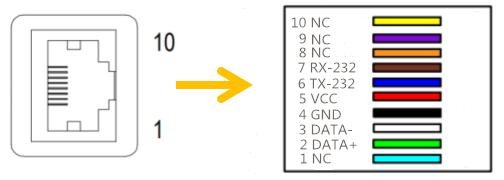
接口定义
PIN# 定义 说明1 NC 无定义2 DATA+ USB 数据+3 DATA- USB 数据-4 GND 电源地5 VCC 串口发送端信号6 TX-232 USB 口为 D-信号7 RX-232 USB 口为 D+信号8 NC 无定义9 NC 无定义10 NC 无定义
产品使用说明
产品使用 如果使用USB版本的扫码器,需将USB数据线的设备接口端(RJ45 接口)与EE扫码器相连,主机接口端(USB接口)与主机相连,设备上电,蜂鸣提示,进入扫码模式; 如果使用RS232 版本的扫码器。需将串口数据线的设备接口端(RJ45 接口)与 EE扫码器相连,DB9母头接口与电脑RS232端口相连,USB口与电脑USB接口相连(此USB口只起供电作用),设备上电,蜂鸣提示,进入扫码模式。 用户可识读设置码设置参数,亦可以通过配置工具生成配置码自定义配置参数。配置成功,“滴滴”蜂鸣提示。给扫码器断电重启后,配置生效。
产品设置(扫码配置)用扫码器扫描对应设置码即可,给扫码器断电重启,配置生效。
工作模式普通模式:扫码器一直处于扫描状态,扫码即上传。开发模式:可以通过 API接口获取扫码数据,可以通过上位机下发协议指令,控制扫码器。 普通模式 开发模式
接口切换USB模式 RS232 模式
波特率切换115200-8-N-1 57600-8-N-138400-8-N-1 19200-8-N-1 9600-8-N-1 4800-8-N-12400-8-N-1 300-8-N-
码制切换只扫 QR 码 打开所有码制
添加\取消回车符添加回车符 取消回车符
添加\取消换行符添加换行符 取消换行符
扫码模式单次模式:同一个码不能连续扫描。间隔模式:同一个码间隔一定时间连续扫描。间隔时间:间隔时间只有在间隔模式下才会生效。 单次模式 间隔 0.3 秒间隔 0.7 秒 间隔 1 秒间隔 1.5 秒 间隔 2 秒间隔 2.5 秒 间隔 3 秒
扫码后动作只响蜂鸣器 只闪白灯只闪红灯 响蜂鸣器并且闪白灯响蜂鸣器并且闪红灯 扫码无反应
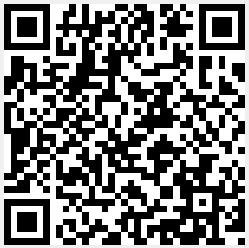
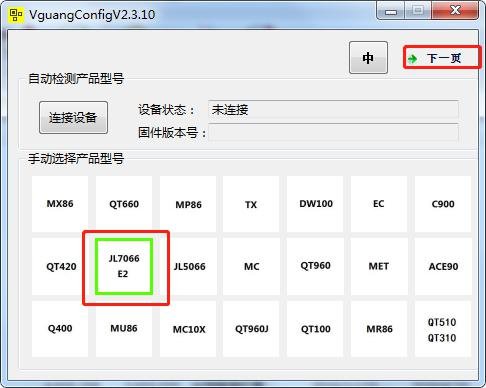
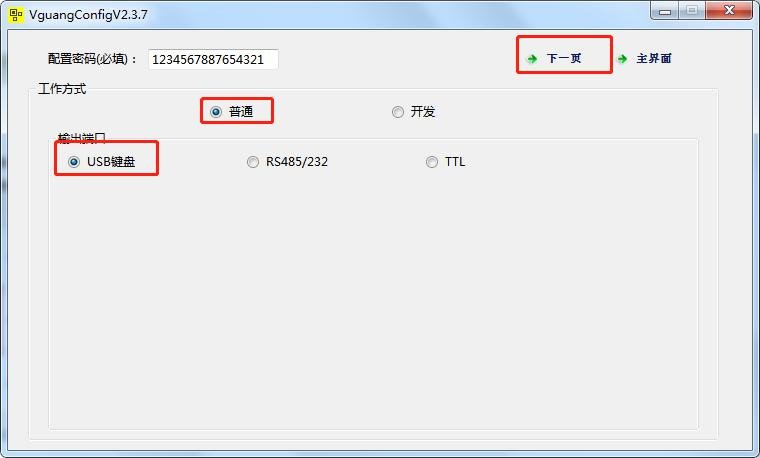
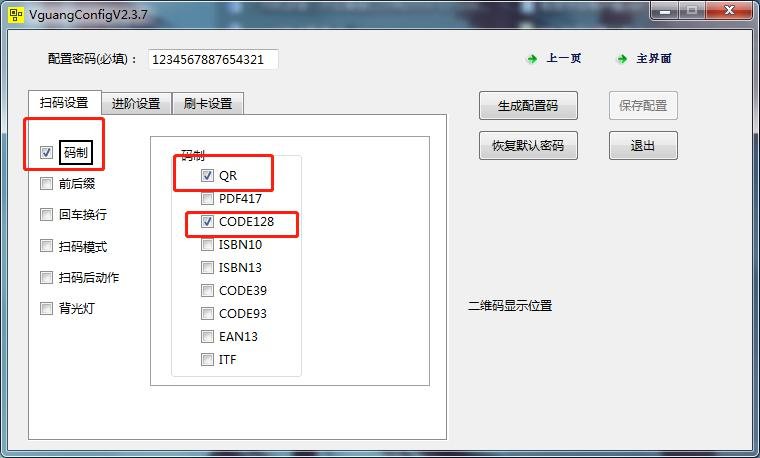
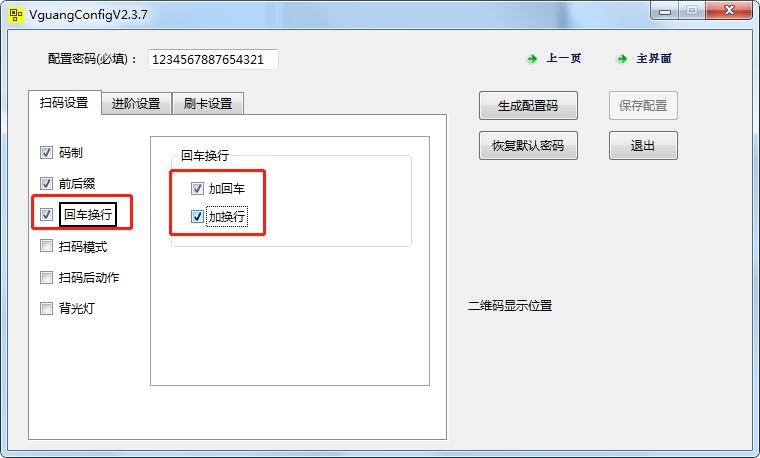
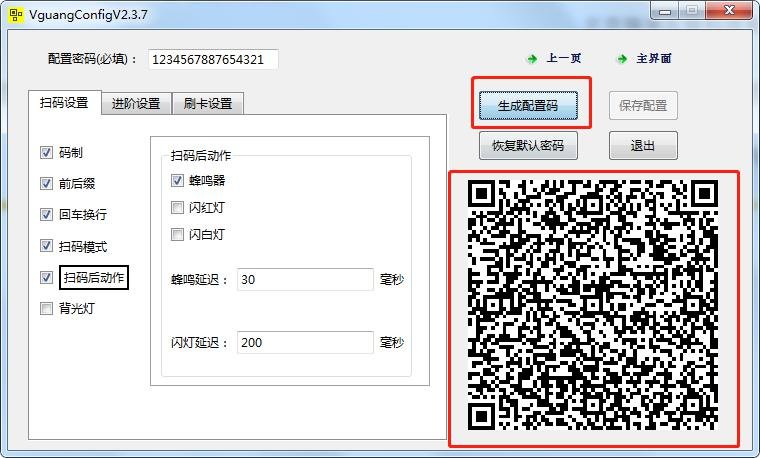
配置工具配置利用VguangConfig 配置工具对设备进行配置。打开如下配置工具(可以官网下载中心获取)。按如下步骤配置扫码器(以普通USB 模式为例)第一步:选择设备、第二步:选择输出方式 第三步:扫码设置(1)设备码制,以打开二维码(QR),和一维码code128 为例(2)设置前后缀,char类型,前缀“start”,后缀“end” (3)添加回车换行功能(4)扫码模式 (5)扫码后动作第四步:点击生成配置码,给扫码器扫描配置码,扫码器滴滴响后,给扫码器断电重启即可。






























二次开发
扫码器支持二次开发,可以在官网下载SDK 或者通信协议进行二次开发。
USB 二次开发通过USB方式做二次开发,需要先将扫码器配置成开发模式并且断电重启。利用官网的SDK 对扫码器做二次开发。目前支持C++,C#,JAVA 三种开发语言,支持windows和安卓两种平台。
串口二次开发通过串口方式对扫码器做二次开发,需要先将扫码器配置成开发模式并且断电重启,并使用微光通讯协议,利用串口收发协议来完成二次开发操作。可以在官网下载中心下载《微光通讯协议》。
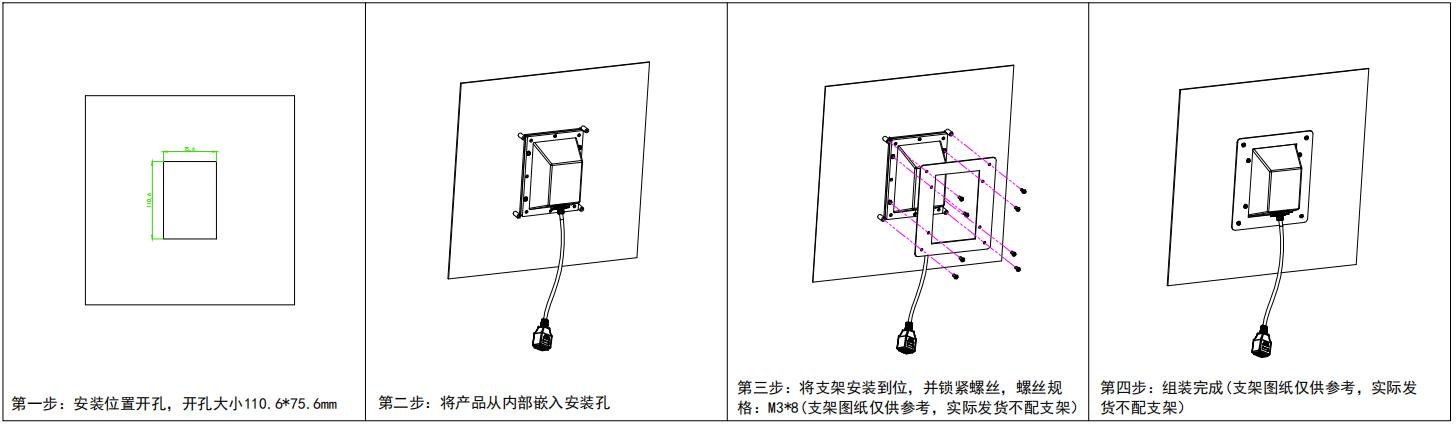
安装示意图
联系方式
Video Tutorials
EE 产品演示
Watch videoFAQ
How can I get the latest firmware for this product?
Firmware and upgrade packages require submitting your company information for approval; once approved, a download link will be sent. You can also upgrade online from the device backend.
The manual does not match the actual device?
Always refer to the device nameplate label and the latest version of the manual. If you have questions, contact Koodle technical support for assistance.